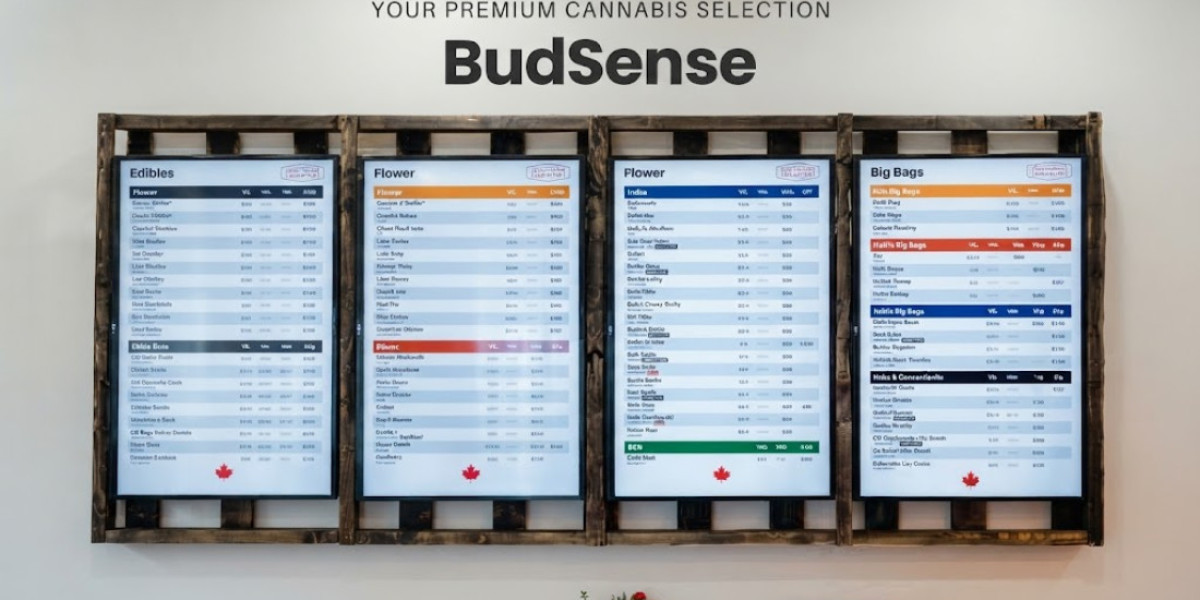

Digital screens have become a practical part of modern cannabis retail. Dispensaries use televisions to display product information, organize menu categories, and make changing inventory easier for customers to browse. However, before a screen can show a digital menu, the hardware and software need to be connected correctly.
This Buzz TV installation guide explains the basic process of setting up a Buzz TV Stick for use with BudSense. It also covers the role of digital dispensary menus, important installation considerations, and ways retailers can create a more useful TV-based menu experience.
What Is a Buzz TV Stick?
A Buzz TV Stick is a compact streaming device that can connect a compatible television to digital content. For cannabis retailers, it can be used as part of a setup for displaying digital menus on TV screens.
The device acts as a connection point between the television and the digital menu platform. Once it has been connected to the TV, given internet access, and paired with the appropriate account, the screen can be used to display the assigned menu.
For retailers moving from printed menus to digital displays, this type of setup can provide a relatively straightforward way to turn an existing TV into a customer-facing menu screen.
Why Use Digital Dispensary Menus?
Cannabis dispensary inventory can change regularly. A product may sell out, a new item may arrive, or pricing and availability may need to be updated.
With printed menus, these changes often require manual adjustments. Digital dispensary menus offer greater flexibility because information can be managed electronically and displayed on connected screens.
Digital menus can also help organize a large selection of products. Instead of placing every item on one physical sheet, retailers can use categories and different screens to make the information easier to navigate.
For customers, a well-organized display can provide useful product information at a glance.
Preparing for Buzz TV Installation
Before starting a Buzz TV Stick installation, it is useful to prepare the equipment and environment.
A typical setup requires:
- A compatible television
- A Buzz TV Stick
- A stable internet connection
- An available HDMI connection
- Access to the appropriate BudSense account
- The BudSense TV application
Screen placement should also be considered before installation. A TV that is too high, positioned behind an obstruction, or exposed to excessive glare may be difficult for customers to view.
Taking a few minutes to plan the physical setup can prevent unnecessary adjustments later.
Buzz TV Installation Guide: Step-by-Step
The exact interface can vary depending on the device and software version, so retailers should always refer to the latest official instructions. However, the general Buzz TV setup process involves several key stages.
1. Connect the Buzz TV Stick to the Television
Start by connecting the Buzz TV Stick to an available HDMI port on the TV.
After connecting the device, switch the television to the corresponding HDMI input. This allows the device's interface to appear on the screen.
Checking the HDMI connection at this stage can help avoid common setup problems later.
2. Connect the Device to Wi-Fi
A reliable internet connection is important because the device needs to communicate with the digital menu platform.
Follow the on-screen instructions to select the appropriate Wi-Fi network and enter the required network information.
For a retail environment, a stable connection is especially important if menus are being displayed continuously throughout the business day.
3. Install BudSense TV
Once the Buzz TV Stick is connected to the internet, the relevant BudSense TV application can be installed according to the available setup instructions.
The application provides the connection between the device and the digital menu content.
Retailers should use the current software instructions because application interfaces and device requirements may change over time.
4. Add the Display in BudSense
After installing the application, the television display can be added through the BudSense platform.
This step connects the physical TV with the digital menu system. Retailers can then assign the appropriate menu or display configuration.
5. Complete the Pairing Process
The device can be paired with the appropriate BudSense account using the pairing process provided during setup.
Once pairing is complete, the assigned menu can be displayed on the television.
For the detailed process, retailers can refer to the official Buzz TV Stick instructions provided by BudSense.
Using Buzz TV for Dispensary Menus
Once installation is complete, the TV can become part of a broader digital dispensary menu system.
A dispensary might use one screen to display flower products and another for pre-rolls, edibles, concentrates, or other categories.
The exact configuration depends on the store's inventory and physical layout.
The main objective should be to make product information easy to find without overwhelming customers with too much content at once.
Designing Effective Cannabis Menu Screens
Installing the hardware is only one part of creating an effective digital menu.
Cannabis menu screens should be designed with readability and organization in mind. Customers may be viewing the screen from several feet away, so small text or overcrowded layouts can reduce its usefulness.
Depending on the retailer's requirements, a product display may include:
- Product name
- Brand or producer
- Product category
- Package size
- Price
- THC and CBD information where applicable
- Availability
- Other relevant product details
A clear hierarchy helps customers understand the information quickly.
For example, the product name can be more prominent while supporting details appear in a smaller but still readable format.
The Role of Cannabis Digital Signage
Cannabis digital signage can serve purposes beyond displaying a basic product list.
Screens can help organize products, communicate store information, or direct customers toward different categories.
A retailer could use multiple dispensary TV menus to create different information zones throughout the store.
This can be particularly useful for larger dispensaries where customers may move between different areas while browsing.
Digital signage also provides flexibility because the content can be changed without physically replacing printed materials.
Keeping Digital Menus Accurate
A digital menu is only useful when the information it displays is accurate.
If a product has sold out but remains listed as available, customers may receive outdated information. Similarly, newly available products may not receive the visibility they deserve if they are not added to the menu.
This is one reason POS integration can be valuable.
BudSense describes POS integration that can support information such as pricing, inventory, and product availability. This can help retailers reduce repetitive manual updates and keep customer-facing menus more closely aligned with operational data.
Common Buzz TV Setup Considerations
Even a straightforward installation can encounter occasional issues.
No Display on the TV
Check that the Buzz TV Stick is properly connected and that the television is set to the correct HDMI input.
Connection Problems
If the device cannot connect to the internet, verify the Wi-Fi network and connection strength.
Menu Not Appearing
Check that the display has been correctly added and paired with the appropriate BudSense account.
Outdated Menu Information
If product information does not appear current, retailers should check their menu configuration and connected inventory or POS information.
When troubleshooting, following the current official installation documentation is preferable to relying on outdated instructions.
Benefits of a Proper Buzz TV Setup
A properly configured TV menu system can offer several practical benefits to cannabis retailers.
Easier updates: Digital information can be changed without printing new menus.
Better organization: Products can be separated into clear categories.
Improved visibility: Large screens can make important information easier to notice.
Multiple displays: Retailers can use several TVs throughout the store.
Flexible content: Menu layouts and information can be adjusted as business requirements change.
These benefits make digital menu displays a useful option for retailers that regularly manage changing product selections.
How BudSense Supports Digital Menu Displays
BudSense is a Canadian cannabis technology company that provides digital, print, and web menu solutions for cannabis retailers.
Its platform is designed to help retailers manage customer-facing product information and display menus through digital screens.
The company's Buzz TV Stick installation resource provides practical instructions for connecting a Buzz TV Stick with BudSense.
Retailers can also visit the BudSense website to learn more about its menu solutions and digital display approach.
Best Practices After Installation
After completing the Buzz TV installation, retailers should establish a simple maintenance routine.
Check that the screen is working correctly, verify the internet connection, and periodically review the displayed menu for accuracy.
It is also worth checking the physical positioning of the screen. Changes to store furniture or customer traffic can sometimes affect visibility.
Keeping the software, device, and menu information properly maintained can help ensure that the display continues to provide useful information to customers.
Conclusion
A Buzz TV installation guide can make the process of setting up a digital dispensary display easier to understand. From connecting the Buzz TV Stick and establishing a Wi-Fi connection to installing BudSense TV and pairing the display, each step contributes to a functioning digital menu system.
Once installed, the TV can become an important part of a dispensary's customer-facing communication. With clear design, accurate product information, appropriate screen placement, and regular maintenance, digital menus can provide a flexible alternative to static printed displays.
For cannabis retailers considering digital menu technology, combining reliable hardware with a well-managed menu platform can create a more adaptable and organized in-store information system.
FAQs About Buzz TV Installation
1. What is a Buzz TV installation guide used for?
A Buzz TV installation guide provides instructions for connecting a Buzz TV Stick to a compatible television and setting it up for digital content or menu displays.
2. What do I need to set up a Buzz TV Stick?
A typical setup requires a compatible TV, Buzz TV Stick, HDMI connection, reliable internet access, and the appropriate software or account needed for the digital menu system.
3. Can a Buzz TV Stick display digital dispensary menus?
Yes. When configured with a compatible digital menu platform such as BudSense, a Buzz TV Stick can be used to display dispensary menu content on a connected TV.
4. Why is Wi-Fi important during installation?
The device requires internet connectivity to communicate with the digital menu platform and receive the appropriate menu content.
5. How can dispensaries keep their digital menus updated?
Retailers can manage menu information through their digital menu platform. POS integration, where supported, can also help synchronize information such as inventory, pricing, and product availability.