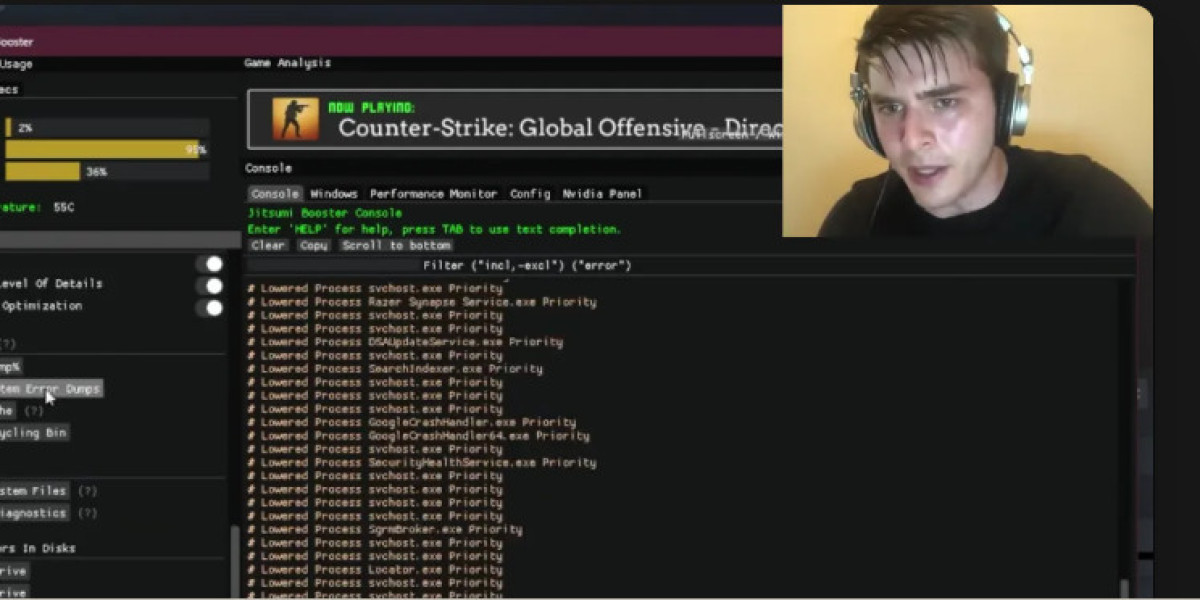

PC gaming is an exciting experience, but getting smooth and consistent performance can sometimes be challenging, specially when utilizing an older computer or even a low-spec Windows PC. Many gamers experience problems such as slow loading times, unexpected frame drops, background applications consuming system resources, and unnecessary processes running while playing demanding games. Fortunately, the best Windows gaming software and performance optimization tools might help users manage their systems more effectively. Game Booster utilities are particularly useful because they allow gamers to regulate unnecessary background applications and configure specific actions for individual gaming sessions. By reducing avoidable resource consumption, players can make smarter utilization of their available CPU and memory capacity without immediately purchasing expensive hardware upgrades. Whether someone enjoys competitive multiplayer games, open-world adventures, racing simulators, or casual PC gaming, understanding how Windows works and using suitable optimization software could make the general experience easier and enjoyable.
Among the main facets of improving PC gaming performance is understanding how background applications and Windows services affect system resources. Programs running in the backdrop may consume CPU processing power, memory, storage activity, and network bandwidth even if users aren't actively getting together with them. Applications such as for instance web browsers, automatic update services, cloud synchronization tools, and unnecessary startup programs can contend with games for jitsumi.com available resources. On computers with limited RAM or older processors, this competition may donate to performance interruptions, slower loading, and inconsistent gameplay. A dedicated Game Booster might help users manage background applications before starting a game title and establish convenient actions for different gaming sessions. As opposed to manually closing multiple programs each time they would like to play, gamers can work with a centralized utility to simplify their preparation process. However, don't assume all background service must be disabled, as essential Windows processes, security software, and hardware drivers are essential for reliable system operation. Effective optimization is targeted on identifying unnecessary resource consumption while maintaining system stability and protecting important functions.
Windows 10 and Windows 11 also include several built-in features that may influence gaming performance. Game Mode was created to help prioritize gaming activity by managing certain system resources and reducing interruptions during gameplay. Power plans provide another important configuration option since they influence how Windows balances energy consumption and performance. Desktop computers and gaming laptops may benefit from different power configurations depending on the hardware, cooling capabilities, and usage requirements. Gamers also needs to review graphics settings, display refresh rates, startup applications, driver updates, and background activity when optimizing their systems. For instance, selecting appropriate in-game resolution settings and reducing demanding graphical effects will often provide more noticeable improvements than changing several Windows settings. A well-maintained Windows installation, updated graphics drivers, and sensible power management can subscribe to a far more consistent gaming environment. Combining these built-in options with dedicated Game Booster software gives users greater flexibility when preparing their computers for different games and performance requirements.
Monitoring system performance while playing is another essential part of fabricating an efficient gaming setup. CPU usage, memory consumption, and frames per second provide useful details about how a computer handles demanding gaming workloads. Without performance monitoring, players may struggle to understand why a certain game experiences stuttering, slowdowns, or unexpected frame-rate changes. A Gaming Overlay makes this information easier to get into by displaying important system statistics directly during gameplay. Instead of minimizing a casino game or switching between several desktop applications, users can check CPU and memory activity via an accessible in-game interface. Convenient application shortcuts also can help players open frequently employed tools without interrupting their gaming sessions. Audio controls provide additional flexibility, allowing users to manage sound settings while keeping their attention on the game. A well-designed overlay brings essential gaming utilities together in a single convenient location, helping users understand their system's behavior and make informed adjustments. By monitoring performance across different games and graphical settings, players can identify possible resource limitations and determine which configuration changes are worth making.
Gaming is not only about hardware performance and frame rates; comfort can be an important part of an optimistic gaming experience. Many PC gamers spend hrs before their monitors, particularly during evening gaming sessions, competitive matches, or long single-player adventures. Extended screen exposure can donate to visual discomfort, dryness, and eye fatigue, particularly when coupled with poor lighting, long periods without breaks, or unsuitable display brightness. A Blue-Light Filter utility offers an additional display customization option by applying a warmer screen tint according to the user's preferences. Scheduling features allow gamers to configure automatic changes at particular times, rendering it easier to establish consistent display settings during the day and evening. Users can make suitable tint levels and schedules based on their environment, monitor characteristics, and personal comfort. These features do not guarantee protection against eye strain or replace healthy screen habits, but they are able to make display customization more convenient. Taking regular breaks, adjusting monitor brightness, maintaining an appropriate viewing distance, and using appropriate room lighting will also be valuable habits for anyone who spends significant time gaming on a Windows computer.
A complete PC gaming setup also benefits from proper platform configuration and regular maintenance. Steam users, for example, can boost their gaming organization by managing their game libraries, checking download settings, organizing storage locations, and keeping installed games updated. Understanding Steam settings will help beginners develop a easier gaming environment, while experienced players can explore controller configuration, cloud saves, launch options, and library management features. Regular PC maintenance is equally important because temporary files, outdated applications, unnecessary startup programs, and insufficient storage space can impact the entire usability of a computer. Gamers should periodically review installed software, maintain updated drivers, check available disk space, and ensure that their computers have adequate cooling and ventilation. Combining these maintenance practices with Game Booster, Gaming Overlay, and Blue-Light Filter utilities creates a far more organized approach to Windows gaming. Each application serves an alternative purpose: Game Booster helps manage background activity and gaming-session actions, Gaming Overlay provides convenient in-game shortcuts and performance monitoring, and Blue-Light Filter offers screen tint customization and scheduling. Together, these Windows utilities support a functional gaming environment focused on performance awareness, system management, convenience, and display comfort.